

Adding a Google Ads Conversion Linker tag using Google Tag Manager
Before you can start tracking Google Ads Conversions using Google Tag Manager, a Google Ads Conversion Linker tag must be in place on every page of your site that a visitor may land on after clicking your ad.
What Is a Conversion Linker Tag?
When a user clicks on one your Google Ads, the URL of the landing page will typically include information about the click – usually in the form of a ‘gclid‘ parameter. The ‘gclid’ is an identifier that allows Google Ads to tie back actions (i.e. conversions) that user takes on your site to the original ad that brought them there.
GCLID = Google Click Identifier
The conversion linker tag will detect the ad click identifier in the URL and store it in a first-party cookie on your domain. This means that if a user comes in to your site via a Google Ad and navigates to other pages before converting, that conversion can still be attributed to the initial ad click.
How To Set Up a Google Ads Conversion Linker Tag using GTM
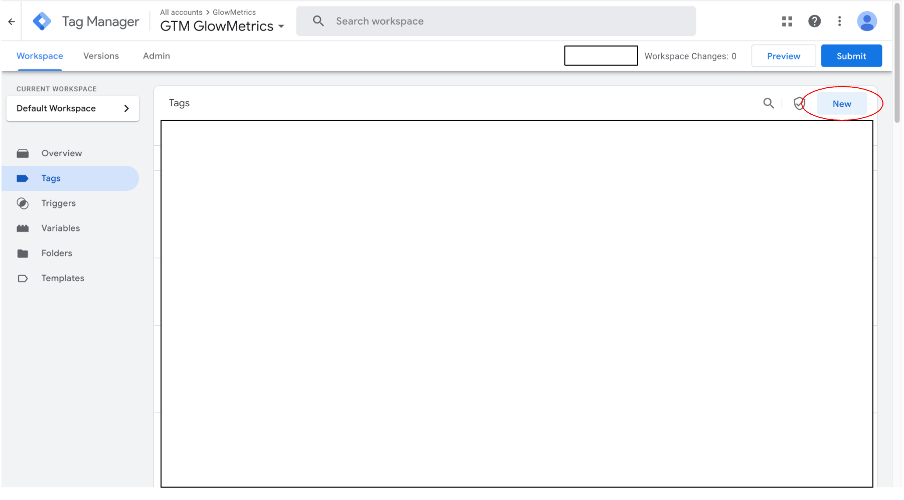
Step 1: Open Google Tag Manager in the container you want to track, make sure you’re in the “Tags” tab on the left and click “New”.
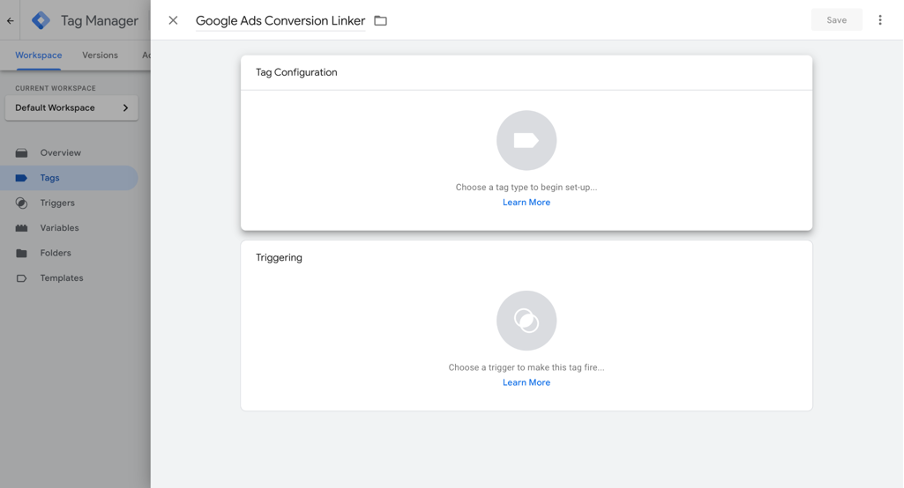
Step 2: Rename your tag and click “Tag Configuration”.
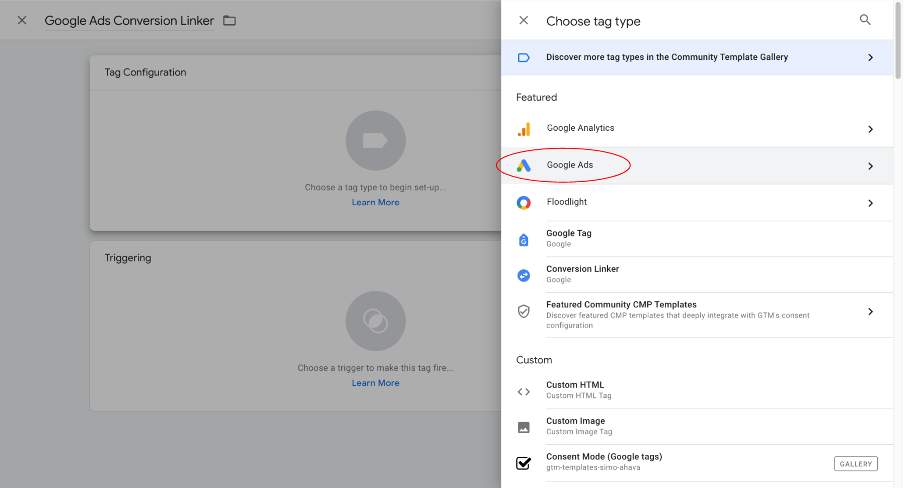
Step 3: Click “Google Ads”.
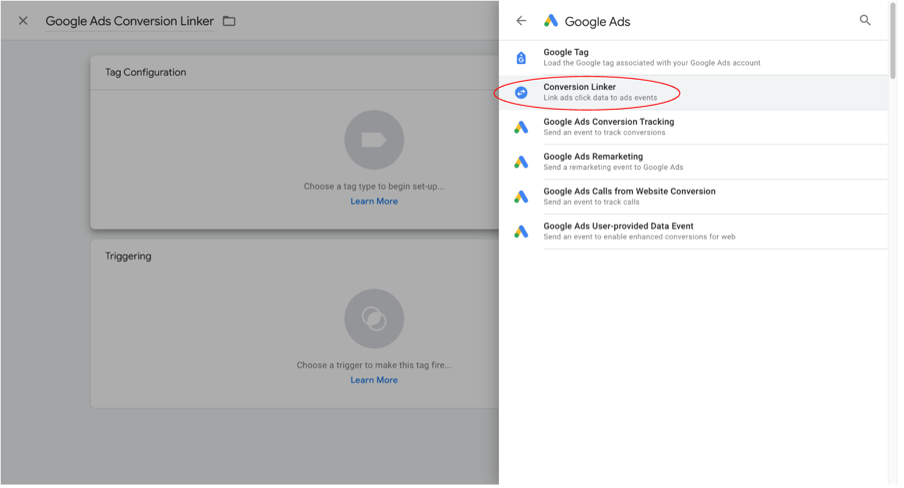
Step 4: Select “Conversion Linker”.
Step 5: We are setting up a basic linker tag so we can leave “Linker Options” blank. Next, click “Triggering”.
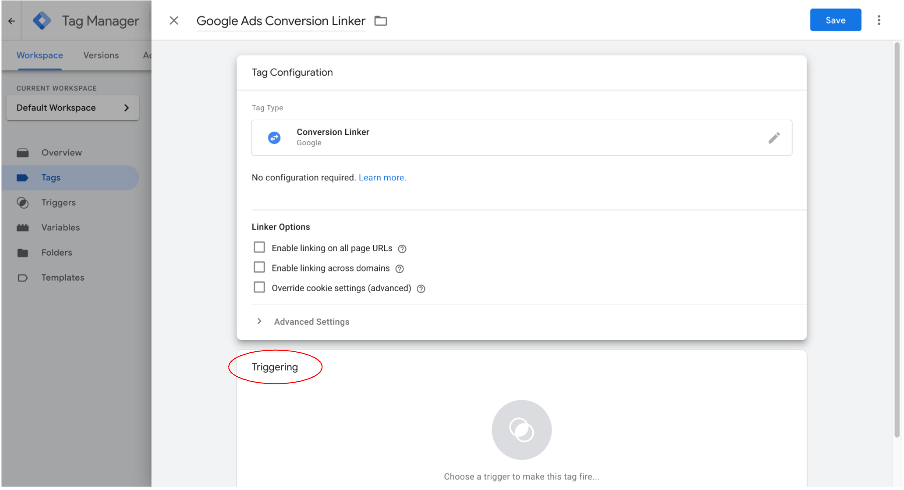
Step 6: Select the blue plus sign in the top right corner to create a new trigger.
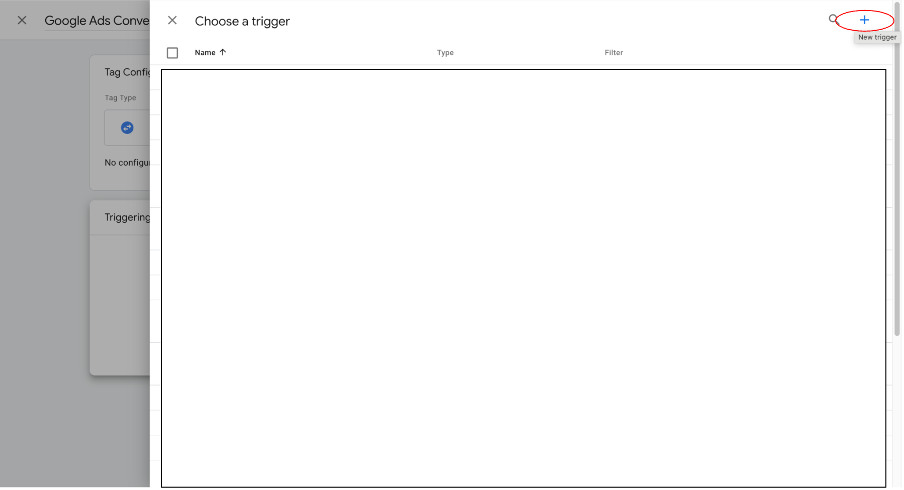
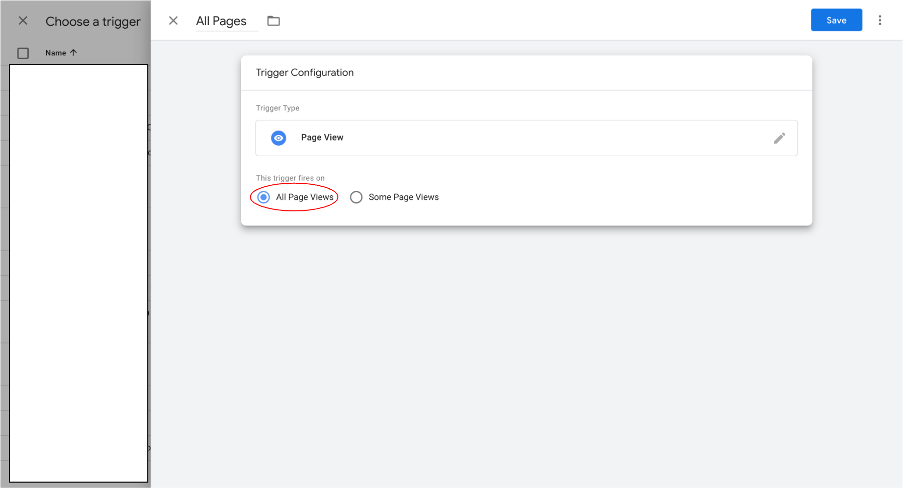
Step 7: Rename your trigger and select “Trigger Configuration”.
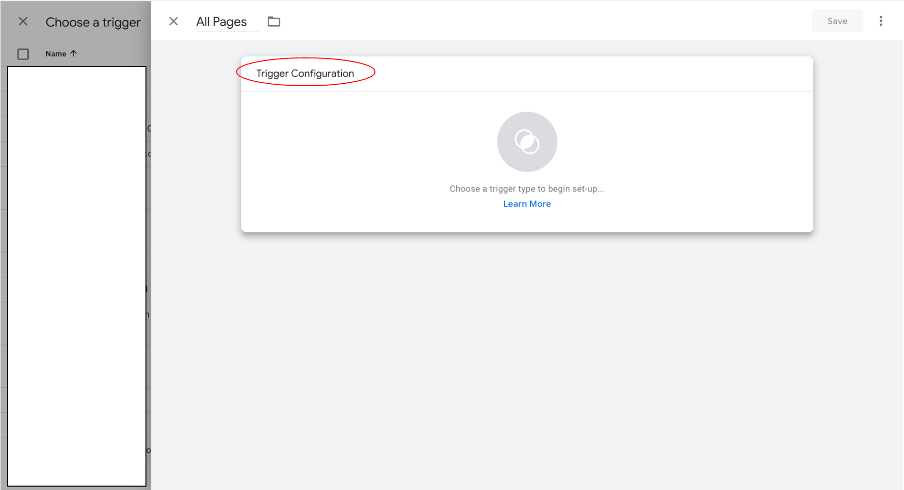
Step 8: Under “Choose trigger type” select “Page View”.
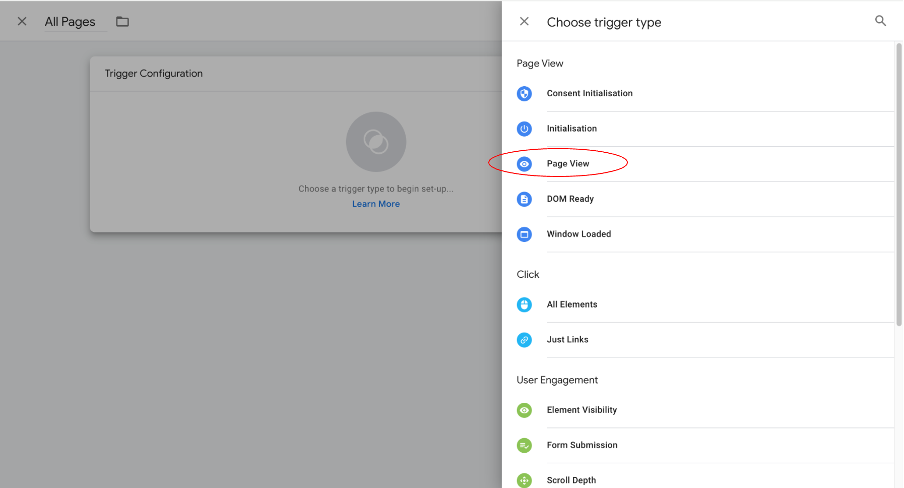
Step 9: Select “All Page Views” as we want our configuration tag to fire on every page users visit after clicking on our ad, then click “Save”.
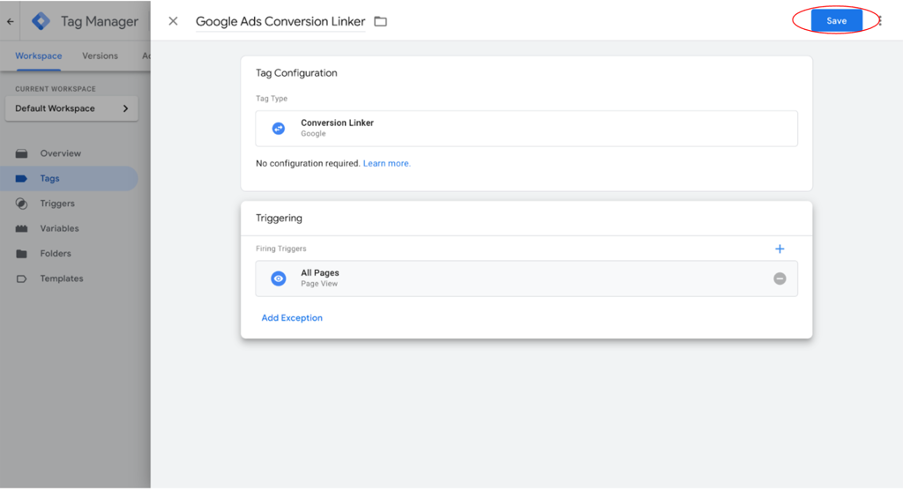
Step 10: Your completed conversion linker tag should look like this, click “Save” again. The Tag will then appear under the “Tags” tab.
Note: your trigger to fire a tag on all pages may be different, depending on your cookie consent configuration. For example, you may only want to fire your Conversion Linker for users who have accepted marketing cookies. For more information on how to do this, please refer to your Cookie Management Platform’s support.
If you have any questions or there’s anything else we can help with, please leave a comment below, or contact us at contact@glowmetrics.com. You can also follow us on @GlowMetrics or subscribe to our newsletter for more tips and news within the world of Digital Analytics and Marketing.