

Centralising Repetitive Parameters with Event Settings Variables in Google Tag Manager
What is a Parameter?
In Google Analytics, parameters are additional pieces of information that provide context and details about user actions or “events” on a website or app. They are essentially key-value pairs attached to these events, with the “key” representing the parameter’s name and the “value” holding the specific data associated with that parameter. Parameters offer deeper insights into user behaviour by capturing specific details about events. For example, when a user clicks an element on your site such as; links, navigation menu items, CTAs, social media sharing buttons, filters etc., you might want to track parameters like:
- click_url: The full URL of the clicked link, providing information about the destination page.
- click_text: The anchor text of the link, indicating what the user clicked on.
- click_id: A unique identifier for the link, useful for tracking specific elements.
- click_class: The CSS class of the link, which can be used to categorise links (e.g., “navigation”, “button”, “external”).
Step 1: Add your parameters as custom definitions in GA4.
Step 2: Ensure your parameters are configured as variables in Google Tag Manager. We have a guide on how to do this here!
Step 3: Set up your tag. Here, we are using “Clicks to Email” (when a user clicks to an email link on your site) as an example, we wont go through setting up the tag here.
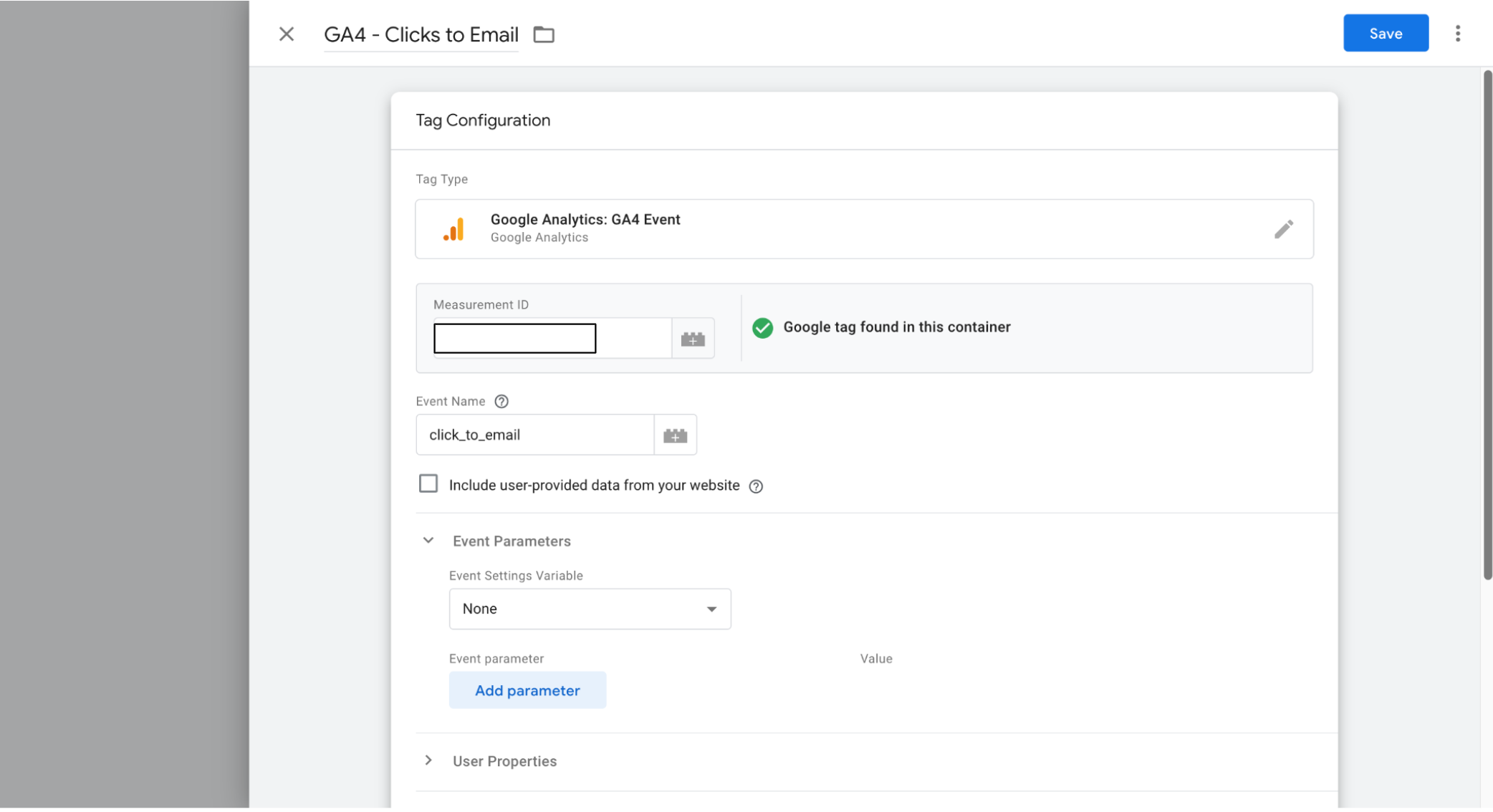
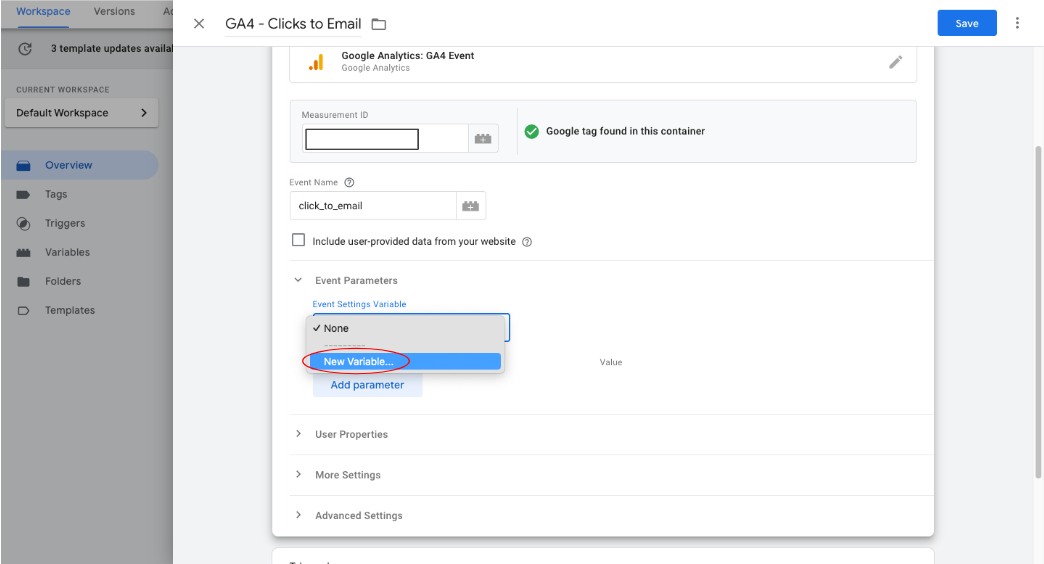
Step 4: In the “Event Parameters” section. Under “Event Settings Variable”, select “New Variable”.
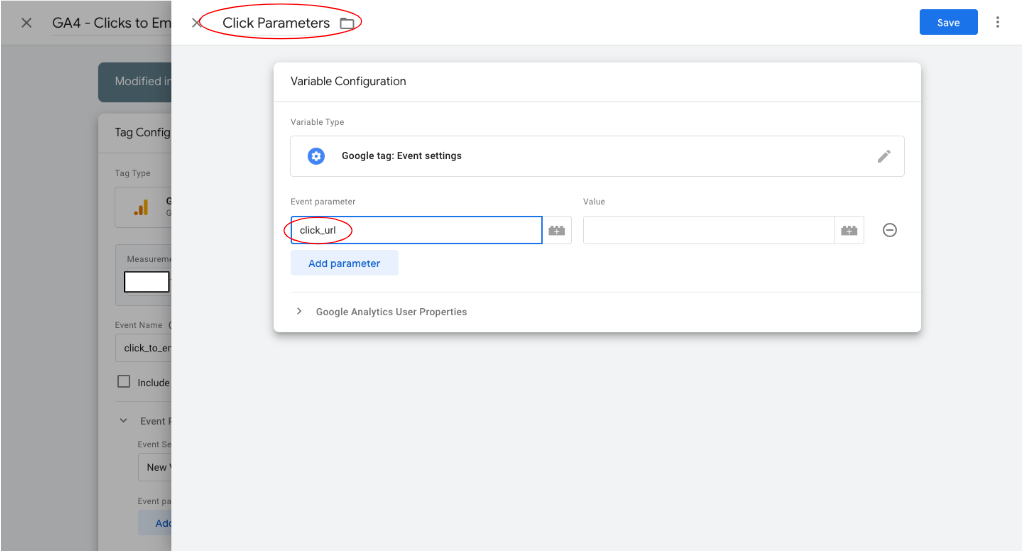
Step 5: Rename the Variable and enter the name of the first parameter you want to track. Here we’re going to start with “click_url”.
NOTE: GTM and GA4 have some technical requirements for how parameters should be named:
Case-sensitive: parameter_name is different from Parameter_name. Consistency is key.
Allowed characters: Use only letters, numbers, and underscores. No spaces or special characters (except for underscores).
Start with a letter: Parameter names must begin with a letter.
Length limits: GA4 has limits on the length of parameter names and values (typically 100 characters).
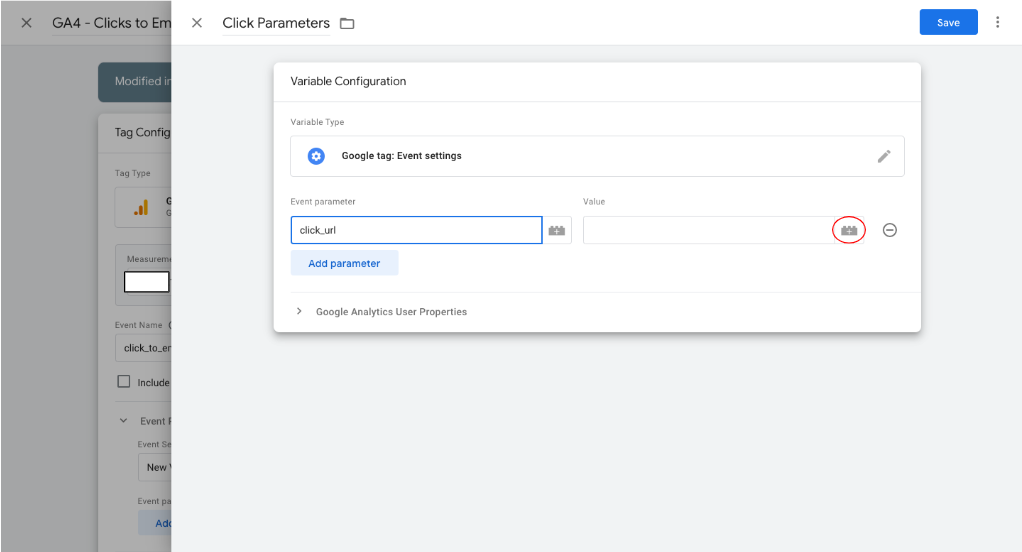
Step 6: Click the “+” button to add the value to your parameter.
Step 7: Select the appropriate value.
NOTE: The parameter values will only appear in the drop down once you have configured your parameters as variables in Tag Manager.
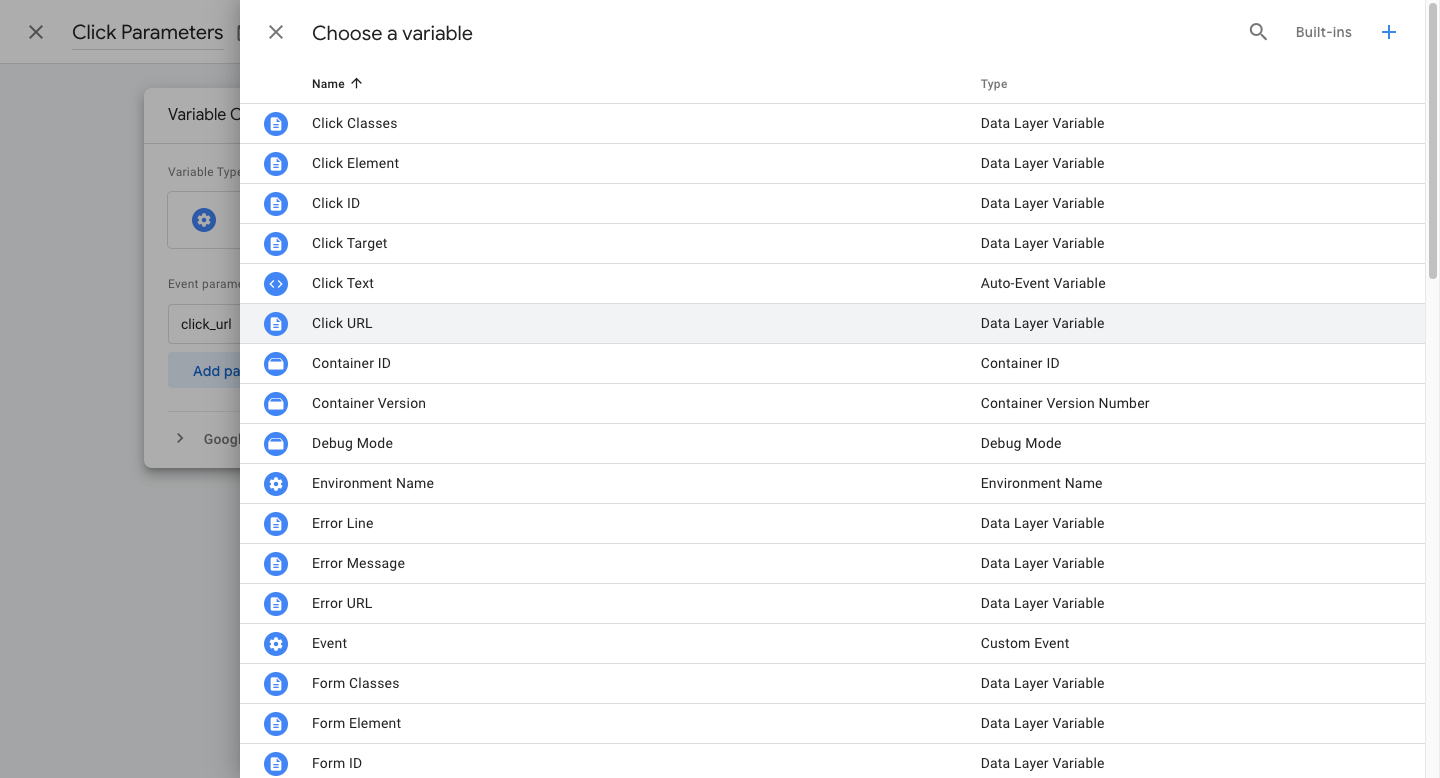
Step 8: (a) Repeat this for every parameter until you have added them all. (b) Now, your parameters will be added to your tag under the “Event Settings” variable. To double check the details of your parameters you can click the “Show inherited parameters” button. This will show the details as below in image (c). When you’re happy with how this looks, click “Save”.
(a)
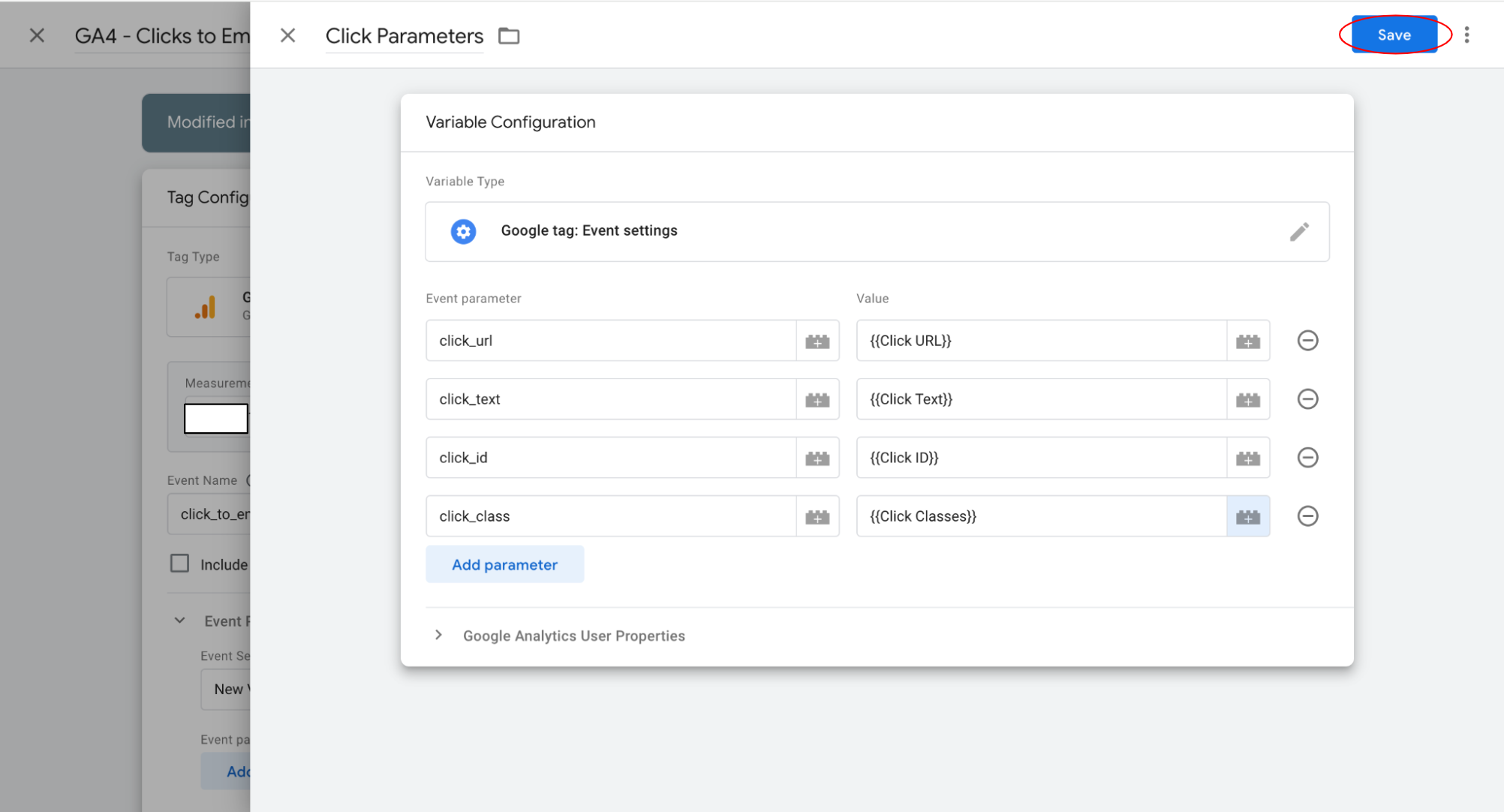
(b)
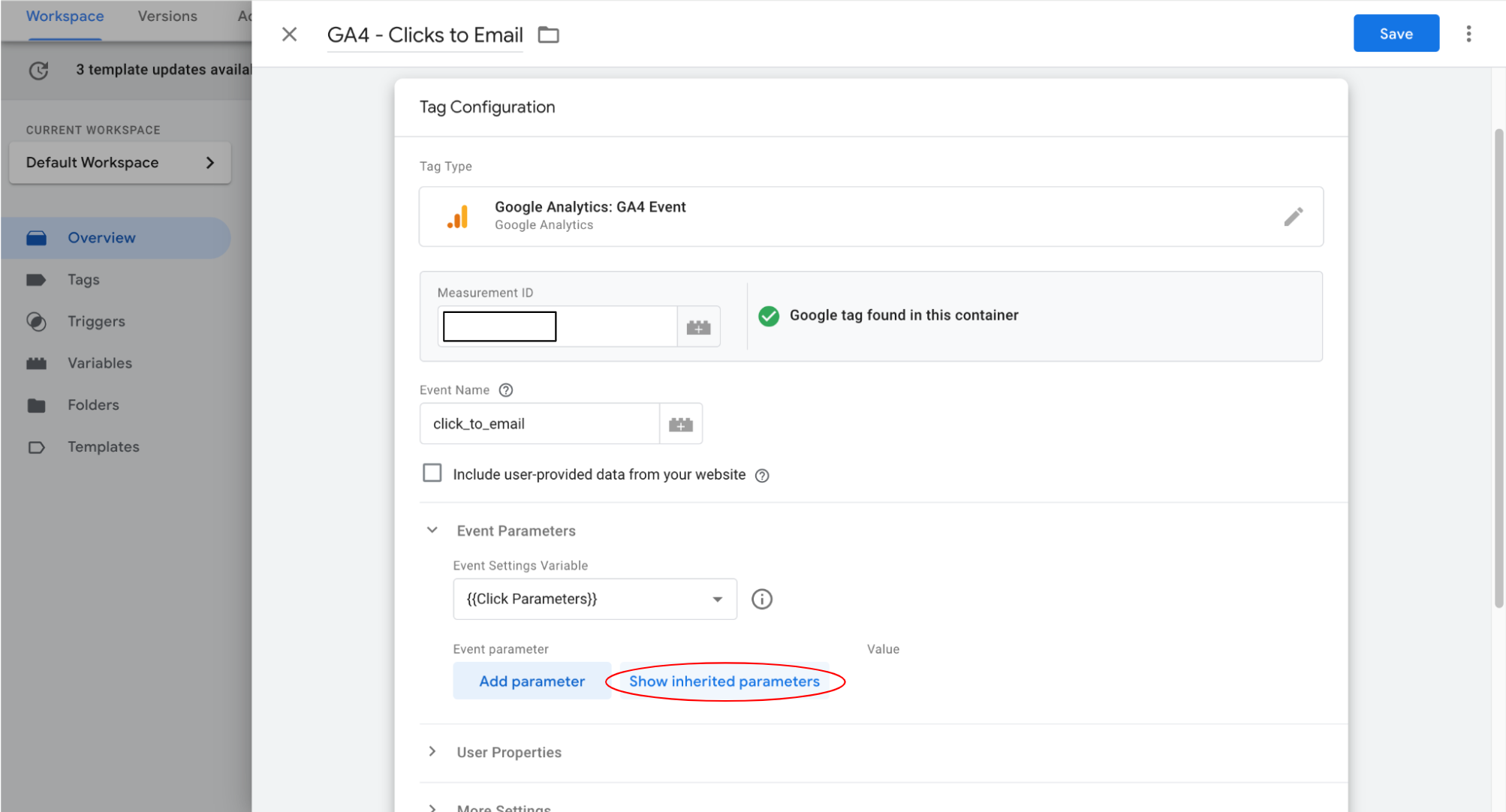
(c)
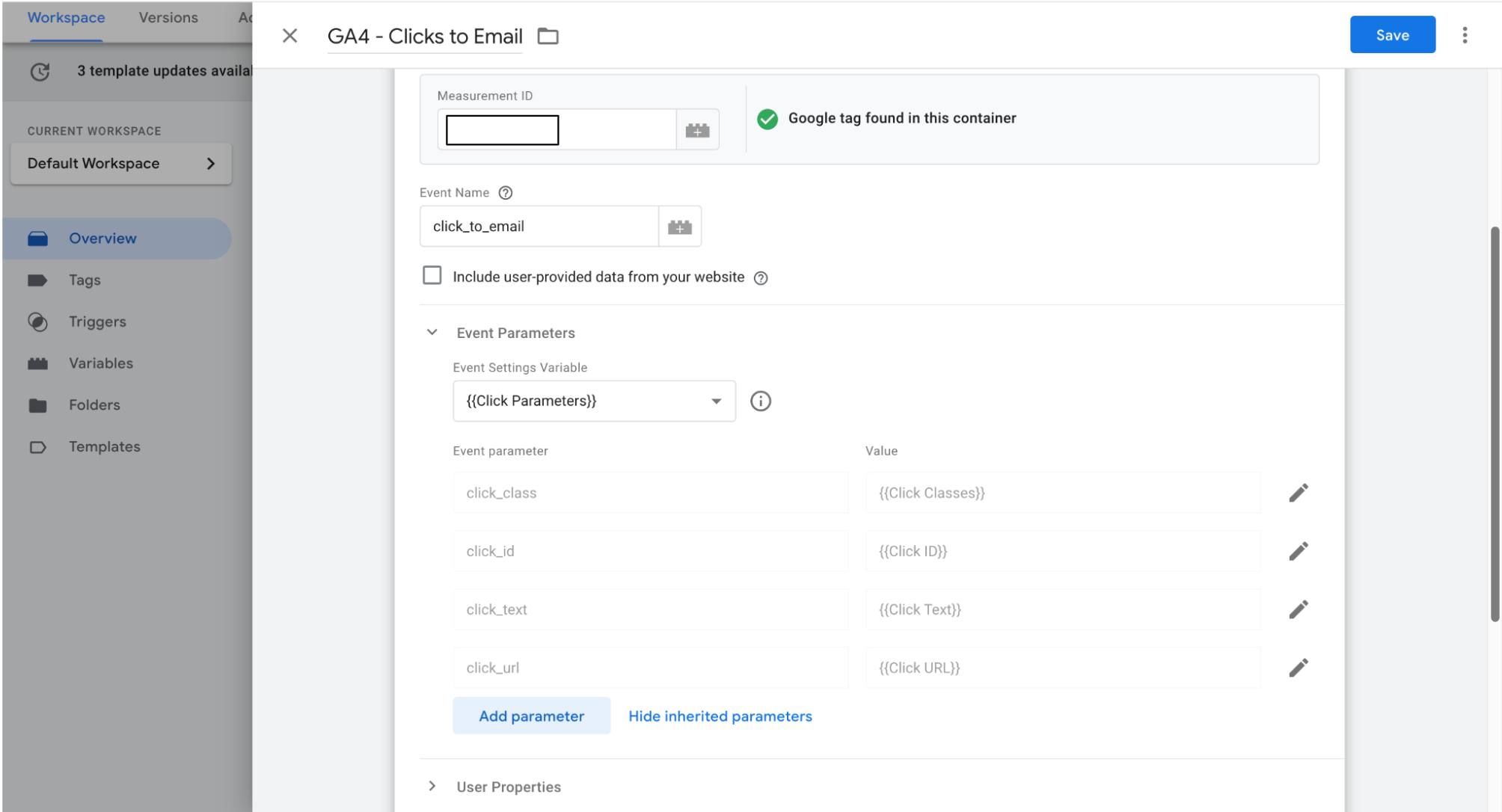
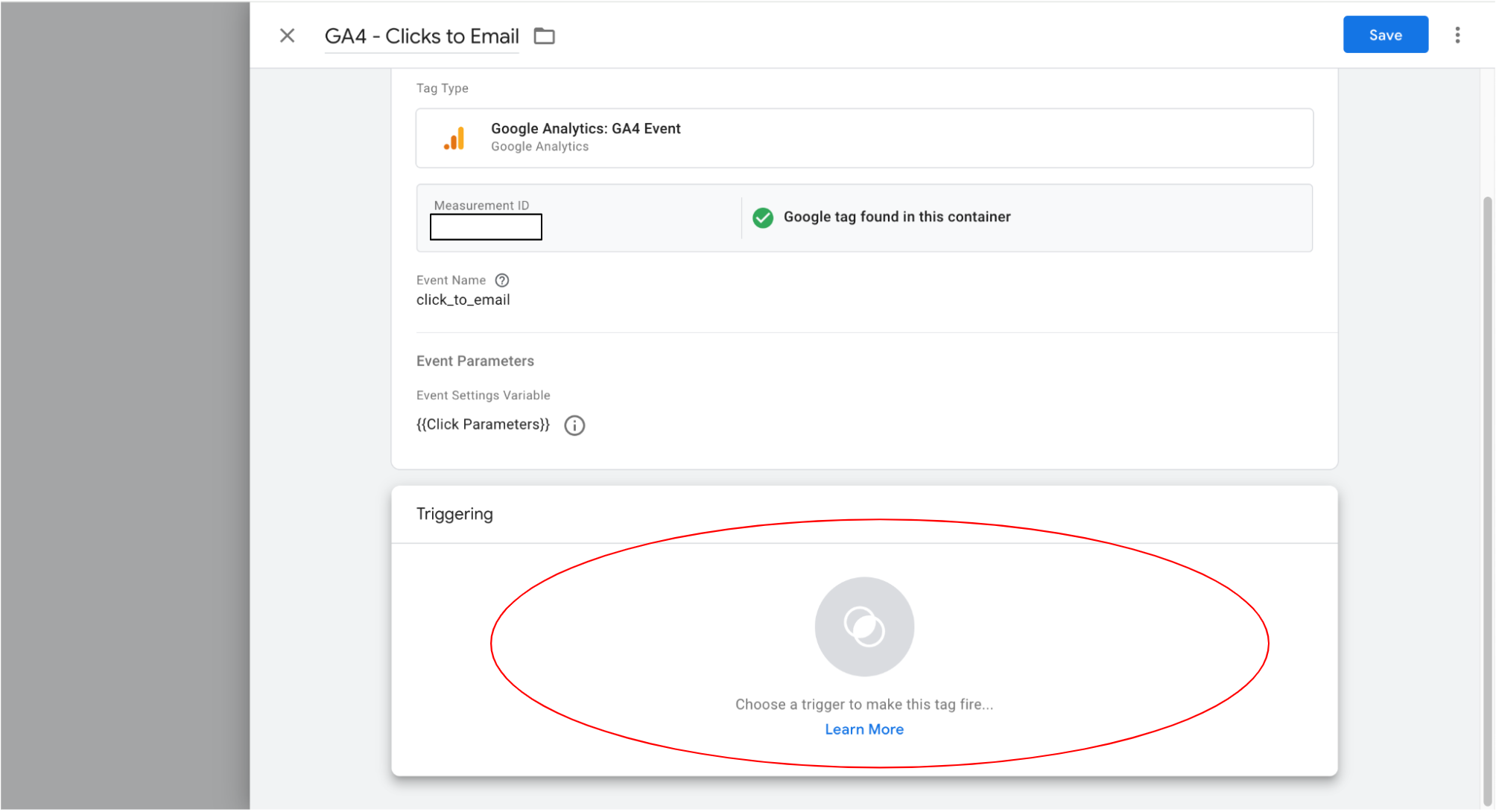
Step 9: Now, you can add the trigger to your tag and you’re ready to collect your data!
Re-using your new “Event Settings” Parameter
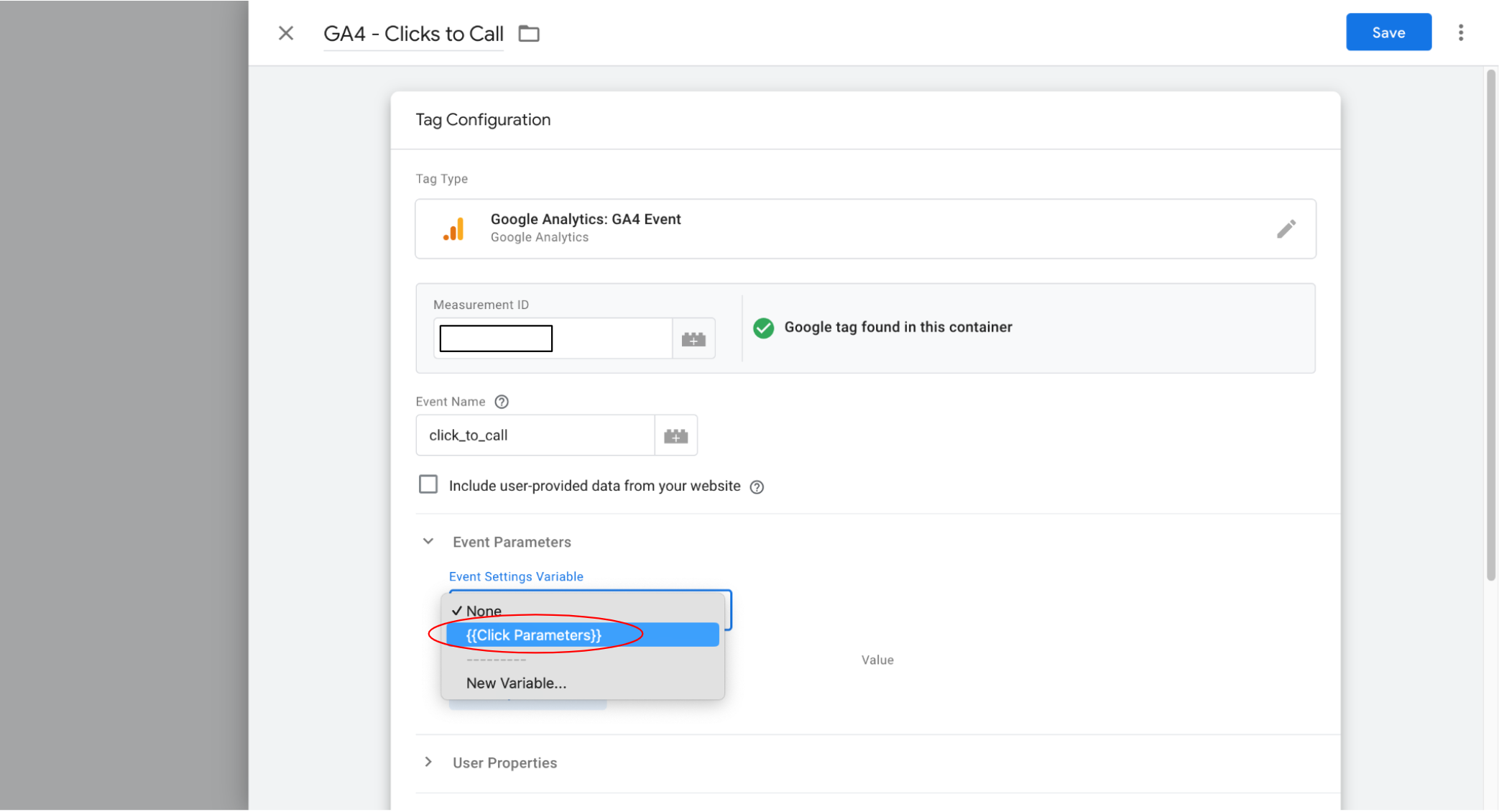
Step 10: Now the Event Settings Variable has been set up, it can be used to capture the same parameters across all relevant tags – “click” tags in this case. To do this, when you are setting up your tag, simply click “Event Parameters” and select your parameter variable from the drop down menu.
Want to Learn More About Google Tag Manager?
For more on Google Tag Manager, check out our blog on FBCLID (Facebook’s Click Identifier) and how it impacts GA4 data or How to Add a Google Ads Conversion Linker tag. If you have any questions or there’s anything else we can help with on Google Tag Manager, please leave a comment below, or email contact@glowmetrics.com.
You can also stay up-to-date by following GlowMetrics on Twitter or LinkedIn or by subscribing to our newsletter (link below) for the latest tips and news in the world of digital analytics and marketing.
Don’t forget to sign up for a FREE account on our Resource Hub to access a wealth of valuable resources, including exclusive Google Tag Manager how-to videos and insights!